
Overview
A run starts in one of four ways, and the project's Triggers tab is where all four are set up. A schedule fires at times you define. A file monitor fires when a file arrives. The API trigger lets another system start a run with a key. And Run manually decides whether people may start one from the run form. A project can use any combination; the run's trigger kind records which one started it.
Schedules, the manual switch and the API trigger are edited with the Manage projects permission. File monitors are edited by people with Manage file monitors and are described in their own guide, File monitors; the Triggers tab lists the project's monitors and offers New monitor with the project already chosen.
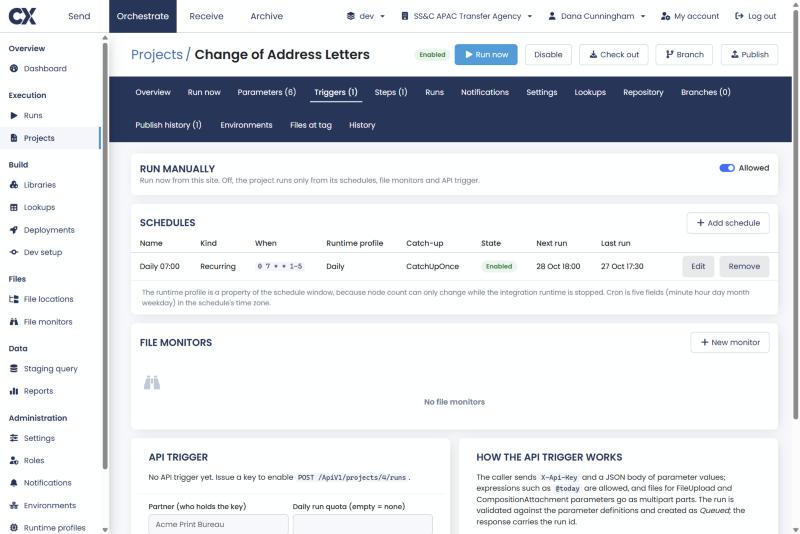
Run manually
The switch at the top reads Allowed or Not allowed. On, anyone with Run projects can start the project from its Run now tab or the Runs list. Off, the project runs only from its schedules, monitors and API trigger, and the run form says so. Switch it off for a project whose runs must come from a controlled source, such as a daily feed that would double-process if someone started it by hand.
Schedules
A project can have any number of schedules, each with a name, a kind, a timing, a catch-up policy, a runtime profile and the parameter values its runs use. The table shows each one with its state, next run and last run.
Add a schedule
- Click Add schedule and give it a Name that says what it is for ("Daily 06:00 weekdays", "Quarter-end").
- Choose the Kind: Recurring, timed by a cron expression, or Once, at a date and time.
- For a recurring schedule, enter the Cron expression (below). For a once schedule, enter Run at in the tenant's local time.
- Choose the Catch-up policy (below).
- Choose a Runtime profile for this window, or leave the project default. A heavy monthly run can ask for a larger runtime than the daily one without changing the project.
- Under Parameter values for scheduled runs, give each parameter a literal or an expression. A parameter left blank takes the project's default.
- Leave Enabled ticked and save.
The next run is computed from now when a schedule is saved, so a changed cron takes effect immediately rather than after the previously planned firing. A schedule saved while the project is disabled is saved disabled, and disabling the project disables every schedule with it.
Cron expressions
The timing is a standard five-field cron expression, minute hour day-of-month month day-of-week, read in the tenant's time zone. A sixth leading field for seconds is accepted but rarely wanted.
An invalid expression is refused when you save, with the parser's message. A time that does not exist on the day clocks go forward is moved to the next valid minute; a time that occurs twice when they go back fires once, at its first occurrence.
Catch-up policies
If the Scheduler was not running when a schedule was due (a deployment, an outage), the policy decides what happens when it comes back:
- Skip: only the most recent occurrence runs, and only if it is less than ten minutes late. Older missed firings are dropped. Use this for anything that is pointless late, such as a run that reads a file which will be there again tomorrow.
- Catch up once: one run is created for the most recent missed occurrence, marked as a catch-up. Use this when the latest state is what matters.
- Catch up all: one run per missed occurrence, in order, each marked as a catch-up, at most fifty in one pass. Use this when every period must be processed, such as a daily extract keyed by date.
A once schedule runs late unless its policy is Skip and it is more than ten minutes late. Parameter expressions on a catch-up run resolve against the time the run was due, so a caught-up Monday run still gets Monday's dates.
Expressions in schedules
The parameter values a schedule carries are usually expressions: @previousMonth for a monthly extract, @yesterday for a daily one, @lastDayOfPreviousQuarter for a quarterly statement. The full list is in Parameters. A literal is used as typed.
File monitors
A monitor watches a folder on a registered file location and creates a run when a complete file matching its pattern appears, handing the file to the package and optionally pulling it into the run folder first. The Triggers tab lists the project's monitors with their state, SLA and last and next poll; configuring one is covered in File monitors.
The API trigger
The API trigger lets another system start a run by calling an endpoint with a key, supplying parameters and files in the request. The card on the Triggers tab shows the endpoint, the partner the key was issued to, the daily quota, the IP allow list, whether the trigger is enabled and when it was last used.
Set it up
- Enter the Partner, the system or organisation that will hold the key.
- Optionally set a Daily run quota, the most runs the trigger may create in a day, and an IP allow list of addresses or CIDR ranges the calls must come from. Both empty means no limit.
- Click Issue key. The key is shown once with a sample
curlcommand; copy it to the partner over a safe channel. Only a hash is stored. - The trigger is enabled when a key exists. Disable trigger stops calls without discarding the key; Rotate key issues a new one and invalidates the old immediately.
What the partner calls
A run is started with a POST to the project's endpoint, authenticated by the X-Api-Key header:
POST https://{tenant host}/ApiV1/projects/{id}/runs
X-Api-Key: {key}
Content-Type: application/json

{ "parameters": { "Period": "2026-09", "Region": "UK" } }
Parameters may be literals or expressions. A project with file parameters takes a multipart request instead: each scalar as a form field (or one parameters field holding the JSON), and one file part per file-upload or attachment parameter, named after the parameter. Files are checked exactly as uploads on the run form are, against the same size and extension limits.
A successful call returns 202 Accepted with the run id, its status, a status URL and the run page's URL. The run is created Queued with the trigger kind API trigger and the partner's name as the requester. The partner can read the run back, and download its outputs, with the same key, and sees only runs its own calls started.
Quick tip
If runs are paused for the tenant, an API call still succeeds: the run is created as Held and queued when runs are resumed, which is what the partner would want.
Choosing a trigger
- The work happens at a known time whether or not a file arrives: a schedule.
- The work starts when a file lands and the file is the input: a file monitor, with pull on detection so the file is kept with the run.
- Another system decides when, and knows the parameters: the API trigger.
- A person decides when, with a file from their desk: Run manually with a file-upload parameter.