
Overview
A file monitor turns the arrival of a file into a run. It watches a folder on a registered file location, polls it on an interval, waits until a matching file is complete, and then creates a run of its project with the file as the trigger. It can pull the file into the run folder so the run keeps its own copy, map parts of the file name onto run parameters, and tidy the source file away once the run has succeeded. An expected-by time lets it raise the alarm when the file does not come.
Monitors live under File monitors in the sidebar and on each project's Triggers tab, and need the Manage file monitors permission.
Create a monitor
- On File monitors click New monitor, or on the project's Triggers tab click New monitor with the project already chosen.
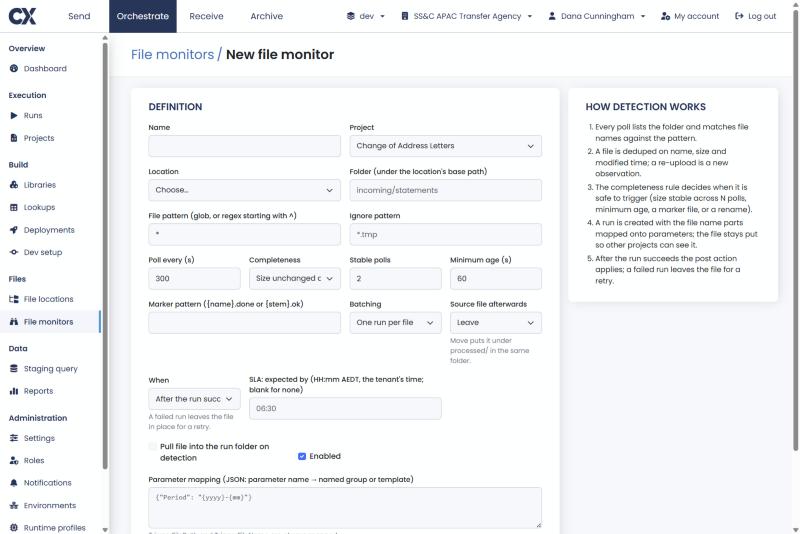
- Give it a Name, choose the Project and the Location.
- Enter the Folder under the location's base path and the File pattern. A pattern is a glob by default (
*.FLT,FAST_?????.txt,{a,b}.csv), case-insensitive; one that starts with^is a regular expression, which is what you want when parts of the name are to become parameters. An Ignore pattern excludes files that would otherwise match, such as a sender's temporary files. - Set Poll every in seconds (300 by default, 30 at the least) and the Completeness rule (below).
- Choose the Batching: One run per file, or One run per poll, which gathers every complete file found in one poll into a single run.
- Decide what happens to the Source file afterwards and when, and whether to Pull file into the run folder on detection.
- Set the SLA: expected by time if the file is due daily, in the tenant's local time, and the Parameter mapping if the file name carries values.
- Save with Enabled ticked. The first poll happens on the Scheduler's next pass.
Deciding a file is complete
A file that is still being written must not trigger a run. The Completeness rule says how the monitor knows a file is finished:
The monitor remembers each file by path, size and modified time, so a file re-uploaded with new content is seen as a new arrival and processed again, while the same file seen on the next poll is not.
What the run receives
When a file is complete the monitor creates a run with the trigger kind File monitor, the requester Monitor: {name}, and a first timeline entry naming the file and the location. The run's parameters carry:
TriggerFilePathandTriggerFileName, always, with the file as it sits on the location; andTriggerFileCount.- Any values from the parameter mapping: a JSON object from parameter name to a named group in a regex pattern or a template, for example
{"Period": "{yyyy}-{mm}"}with a pattern such as^FAST_(?<yyyy>\d{4})(?<mm>\d{2})\.txt$. - With Pull on detection, the file is copied into the run folder's
inputs/, measured and recorded as a monitored input, and the run-folder path is handed to the package asTriggerFile; for one run per poll, the paths are handed as theTriggerFilestable. The package then downloads it with a CX File Operation. - Without a pull, the package fetches the file itself with CX Transfer File - Retrieve Remote, using the location name.
Pulling on detection is the usual choice: the run keeps its own copy of exactly what it processed, which survives whatever happens to the source file, and the Inputs tab shows it.
The source file afterwards
Source file afterwards is Leave, Move (into a processed/ folder beside it) or Delete, and When is After the run succeeds or As soon as it is pulled into the run folder. The second timing needs pull on detection, since the run must have its copy first. With the first, a failed run leaves the file in place so that a corrected project can be run against it again. Each detected file's row records what happened to it.
Expected-by time and the SLA
A monitor with an SLA: expected by time is overdue when that time has passed on a weekday, in the tenant's time zone, and nothing has been triggered or processed that day. An overdue monitor shows an Overdue badge, appears in the dashboard's Monitors overdue card for people who manage monitors, writes an audit entry once per day, and raises the Monitor overdue notification event, which is the one to subscribe the operations team to. A monitor is also flagged when its next poll is more than one interval late, which usually means the Scheduler is not running.
Reading a monitor
The File monitors list shows each monitor with its project, location, state, SLA, last and next poll, and how many files it has seen today and has pending. Click one for its page:
- The header shows whether it is enabled and overdue, with Poll now (which brings the next poll forward to the Scheduler's next pass), Edit, Disable or Enable, and Delete.
- The Definition card restates the settings, with the poll interval in minutes and the post action explained in words.
- Detected files lists every file the monitor has seen, with its size, modified time, when it was first seen, its stable-poll count, its status and message, and a link to the run it triggered.
The statuses a file passes through are Seen (waiting for the completeness rule, with the stable count shown), Triggered (the run exists), Processed (the run succeeded and the post action was applied), Failed (the run failed; the file is left for a retry) and Ignored (it matched the ignore pattern).
Quick tip
When a file is sitting at Seen longer than expected, check the completeness rule against what the sender actually does. A sender that touches the file after writing it, or writes it in bursts, will keep resetting a size-stability rule; a marker file or a rename pattern is more reliable for them.
When a monitor does not trigger
- Open the monitor. Is it enabled, and is the project enabled? Disabling a project disables its monitors.
- Is the last poll recent? If not, the Scheduler is not polling; check for a platform notice.
- Browse the location from File locations. Is the file in the folder the monitor names, with a name the pattern matches? Patterns are case-insensitive, but a folder is not.
- Is the file listed under Detected files as Seen? Then the completeness rule has not been met yet.
- Is it listed as Ignored? Then the ignore pattern caught it.
- Is the tenant paused? A paused tenant still detects files, but the runs are created as Held.