
Overview
A file location is a place outside the run folder that Orchestrate can read from or write to: the SFTP folder a registry drops its extracts into, the folder a print room collects from. Registering a location once means a file monitor can watch it, a package can fetch from it with Retrieve Remote, and a package can deliver to it with Send Remote, without any of them holding a credential. The credentials stay with the platform, in the tenant's Key Vault.
Locations are managed under File locations in the sidebar's Files section, with the Manage file locations permission. People with Manage file monitors can open the page and browse a location but not change it.
Location kinds
Every location also has a Direction: In for files that arrive, Out for files Orchestrate delivers, or Both.
The platform SFTP account is set up when the tenant is onboarded: its endpoint is {user}@{account}.blob.core.windows.net with a home folder named for the tenant, and the location to register uses that account and that folder as its base path.
Register a location
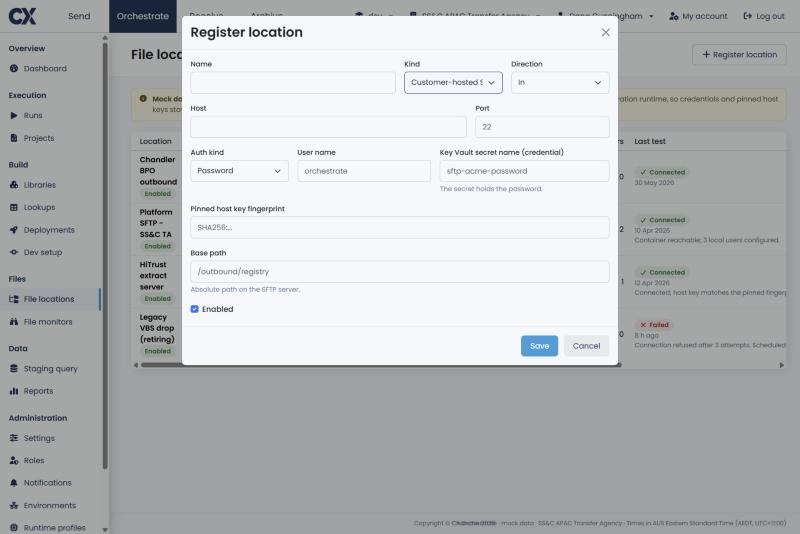
- On File locations click Register location.
- Enter a Name, the name monitors and packages will use.
- Choose the Kind and Direction.
- Fill in the fields for the kind (above). For a customer-hosted server, the secret must already exist in the tenant's Key Vault; for an SSH key with a passphrase, the passphrase goes in a second secret named
{secret}-passphrase. - Enter the Base path. Monitors and tasks name folders relative to it.
- Leave Enabled ticked and save.
Test it
Click Test on the row. For a platform SFTP location the test confirms the container exists and the platform identity can reach it, and the message points at the storage role to grant if it cannot. For a customer-hosted server the test performs an SSH handshake. The result and its message are kept as the row's Last test, so the list shows at a glance which locations have been verified.
Browse opens a folder listing of the location, which is the quickest way to confirm the base path is right and to see what is waiting.
The list
Each row shows the location's name, kind, endpoint (blob://account/path or sftp://host:port/path), direction, authentication, how many monitors use it, and the last test result. Edit changes anything but the kind; Delete is unavailable while a monitor uses the location, because the monitor would have nothing to watch.
How locations are used
- A file monitor names a location and a folder under its base path, and watches it for files.
- A package's CX Transfer File - Retrieve Remote task names a location, a folder and a pattern, and Orchestrate copies the matching files into the run folder's
inputs/. - A package's CX Transfer File - Send Remote task names an outbound location and a folder, and Orchestrate delivers the chosen outputs there. A composition can also be delivered straight to a location from the Compose task.
In every case the location is named by its name, and the credential is resolved by the platform at the moment of use, so rotating a password or key is a change to the Key Vault secret and nothing else.
When you'd use this
- A registry will drop a nightly extract on the platform SFTP: register the platform location, then create a monitor on it.
- A partner wants files delivered to their own server: register a customer-hosted location with direction Out, test it, and name it in the project's Send Remote task.
- A credential is being rotated: update the secret in Key Vault, then Test the location to confirm.