
Overview
A parameter is something a run has to be told: the period to process, the region, a file to work on, a flag. The project declares its parameters on its Parameters tab; the run form, a schedule, a file monitor and the API trigger then supply values; and the package receives them, either as SSIS execution parameters or through the CX Get Run Parameters task. The run records the values it was given, so a result can always be traced back to its inputs.
Declaring parameters needs the Manage projects permission; anyone who can see the project can read them.
Declared and contracted
There are two lists on the tab, and the relationship between them is the thing to understand.
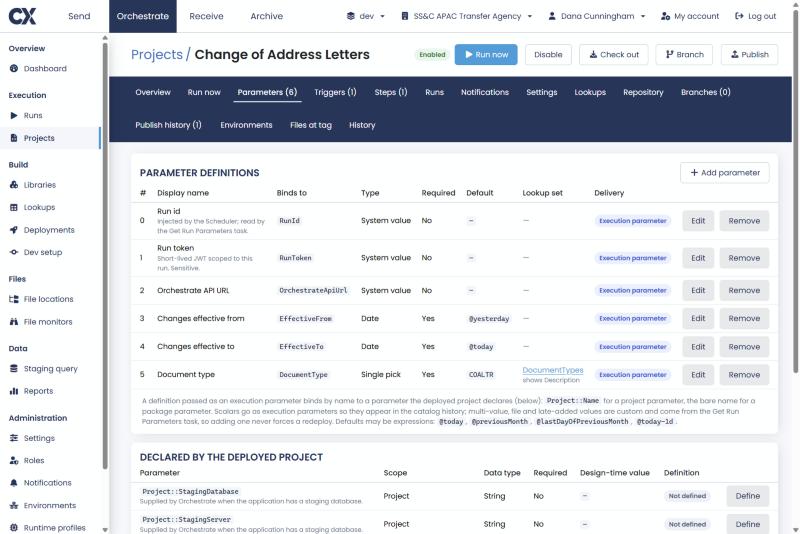
Declared by the deployed project is the contract: every project and package parameter the SSIS project declares, read from its files at the last publish, with its scope, data type, whether it is required and its design-time value. This list is not edited here; it changes when you change the project in Visual Studio and publish.
The parameter definitions are what Orchestrate knows about each one: its display name, type, default, validation and where its value comes from. A definition is usually bound to a contract entry by name (Project::Region for a project parameter, the bare name for a package parameter), and the contract table has a Define button beside each entry that has no definition yet. A definition can also stand alone, delivered only through Get Run Parameters, for a value the package reads into a variable rather than declaring as a parameter.
If a publish removes a parameter the project used to declare, its definition is flagged Not in the deployed project. The run form shows the flag and the Scheduler leaves the value off the execution until you remove or rebind the definition.
Add a definition
- On the Parameters tab click Add parameter, or Define beside a contract entry.
- Binds to is the SSIS parameter name. Before the first publish there is no contract, so you type the name you intend to declare.
- Give it a Display name, which is what operators see on the run form, and a Help text if the value needs explaining.
- Choose the Type (below) and whether it is Required.
- Enter a Default, a literal or an expression such as
@previousMonth. - For text, a Validation regex the value must match.
- For a pick type, the Lookup set and Display column.
- Decide the delivery: Pass as SSIS execution parameter (on by default, scalars only) or off, so the package reads it with Get Run Parameters.
- Save. The table shows each definition with its display name, binding, type, required flag, default, lookup set and delivery.
A name must be unique within the project, a pick type must name a lookup set, and once a contract exists an execution parameter must bind to a name the project declares; the message lists the names it can bind to.
Types
Defaults and expressions
A default is used whenever a trigger does not supply a value: a schedule with no expression for the parameter, an API call that leaves it out, or an operator who accepts what the form shows. Most date defaults are better as expressions than as fixed dates, because they are evaluated when the run is created, in the tenant's time zone:
@today,@yesterday,@tomorrow,@now@firstDayOfMonth,@lastDayOfMonth,@firstDayOfPreviousMonth,@lastDayOfPreviousMonth@previousMonthand@currentMonth(yyyy-MM)@lastDayOfPreviousQuarter,@lastDayOfPreviousFinancialYear(30 June),@financialYearStart(1 July)- Any of these with an offset:
@today-1d,@firstDayOfMonth+2d,@today-1m,@today+1y
Scheduled runs resolve their expressions against the time the schedule was due, not the time the Scheduler happened to fire, so a catch-up of yesterday's 02:00 run still gets yesterday's dates. Anything that is not a recognised expression is a literal.
Two ways a value reaches the package
As an execution parameter. The Scheduler sets the SSIS parameter on the execution, and the package reads $Project::Period or $Package::Period as it would any parameter. This is the simplest route and suits scalars that the package needs before anything runs. Pick lists with several values, file uploads and attachments cannot travel this way.
Through Get Run Parameters. The value stays on the run and the task reads it into a package variable of the same name when the package starts. This is the route for files (the variable receives the run-folder path), for multi-value picks, and for anything the package would rather read into a variable than declare. The run's Parameters tab shows which route each value took.
Quick tip
The parameter-patterns template is a worked example of every route: a project parameter, a package parameter, a variable filled by Get Run Parameters, a file, and a lookup read from staging. Create a throwaway project from it when a pattern is unclear.
System values
Some values Orchestrate supplies itself, and a project that declares the matching parameter receives it on every execution: RunId, OrchestrateApiUrl, RunToken, RunFolderPath, TriggerFilePath, StagingServer, StagingDatabase, SqlAuthentication and TenantTimeZone. A publish adds a System value definition for each one the project declares, so they appear in the list but never on the run form. The run's Parameters tab shows the values used, with a copy button, except the token and the authentication string.
When you'd use this
- A package needs a period: a Date parameter with
@lastDayOfPreviousMonthas its default. - Operators should choose a fund from a maintained list: a Single pick bound to a lookup set.
- The input is a file an operator has on their desk: a File upload with the accepted extensions set.
- A letter batch needs a terms-and-conditions insert: a Composition attachment.