
Overview
Orchestrate does not change how you build SSIS. Data flows, Foreach loops, script tasks and the rest work as they always have. What it adds is a context the package runs inside: a run with parameters, a run folder for its files, a staging database for its data, and a platform that expects the package to tell it what happened. A package that respects those four things is easy to operate: its inputs and outputs are visible on the run page, its counts are right, and a failure says where it failed.
This guide is about that shape. The individual tasks are described in CX tasks; the parameters a project declares, in Parameters.
The contract between the project and the platform
Every template project declares a small set of project parameters that Orchestrate fills on each execution. Keep them exactly as the template has them:
At publish time Orchestrate reads the project's parameters, packages and entry package from the .dtproj, Project.params and each .dtsx, and records them as the project's contract. Parameter definitions on the project's Parameters tab bind to that contract by name, so a package parameter you add in Visual Studio becomes something an operator can fill in once it has been published and defined.
The RunToken parameter is the reason a package needs nothing else: it names the tenant and the run, and the connection manager sends it with every call. Never give it a design-time value and never log it.
Start with Get Run Parameters
The first task in the entry package is always CX Get Run Parameters. It fills the variables the rest of the package uses, from the run:
User::RunFolderPath,User::InputsPath,User::OutputsPathandUser::WorkPath: where the run's files live.User::LocalWorkFolder: a scratch folder created on the node for this run, which the package removes at the end with a File System task.- One variable per run parameter you tick on its Parameters tab:
User::Period,User::Regionand so on. - For a monitor-triggered run, the detected file as
TriggerFile, or a table of files. - An Azure SQL token in
User::SqlAccessToken, for the staging connection on your workstation.
Declare the variables the package needs and tick them; a ticked variable the package does not have fails validation in the designer, which is the right time to find out.
Files: the run folder
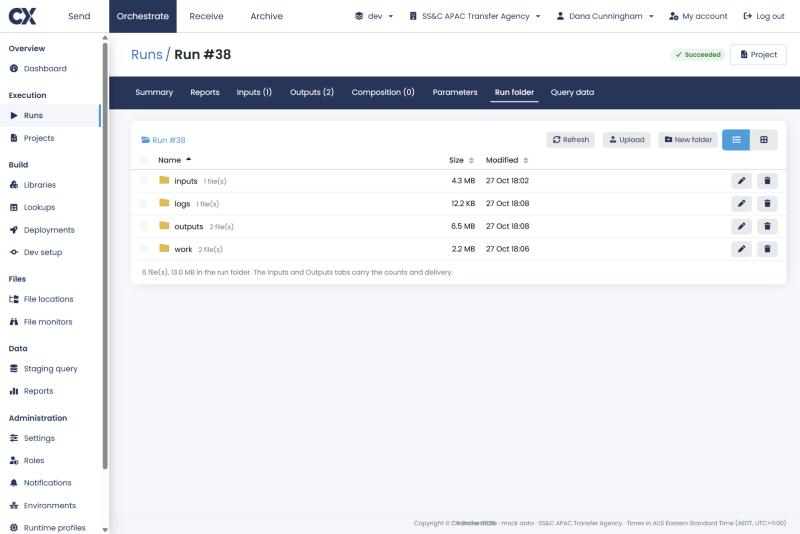
Each run owns a folder in the tenant's storage: runs/{project}/{yyyy}/{MM}/{runId}/, with inputs/, outputs/ and work/ made for it. The package never sees a storage key; the CX File Operation task moves files between the node and the run folder using the runtime's identity, and every path is relative to the run folder (outputs/letters.pdf) or built from the variables above. A path with .. in it, or one into another run's folder, is refused.
The conventions that make a run readable afterwards:
- Inputs arrive in
inputs/: pulled there by a monitor, uploaded on the run form (underinputs/{parameter}/), or fetched by Retrieve Remote. Download what you need to the local work folder, process it there, and register your counts against it with Register input. - Outputs go in
outputs/and are registered: by an upload with Register as output on, by Register output for a file written straight into the folder, or by the composition and query tasks that register what they write. A registered file appears on the run's Outputs tab with its size, checksum and counts, can be downloaded by operators, and is what Import and Send Remote work on. An unregistered file is just a file. - Working files such as payloads and manifests belong in
work/orprocess/, unregistered. They are still visible on the Run folder tab for anyone investigating. - Side files that the composition and document tasks produce (reports, journals, engine logs) go in a
logs/folder beside the output, or in the folder you name as the task's Logs folder, sooutputs/holds only what operators should see.
Retention runs per project: inputs and outputs are deleted after their retention days, and the rows on the run page remain marked Expired. Anything that must survive the run folder should be delivered somewhere with Send Remote, or imported.
Data: the staging database
The project's staging database is where a package loads, transforms and queries. The template's Staging connection manager builds its connection string from the project parameters and signs in three ways, in order: with SqlAuthentication on the runtime (the managed identity), with the token in User::SqlAccessToken when a package is run from Visual Studio against a real run, and interactively as SqlUserName while you design. Tasks that use it carry DelayValidation so they validate once the token exists.
Two habits keep the database manageable:
- Put the project's own tables in
stgand key them by run id, so that several runs can coexist and a report on a run page can show that run's rows. Reports and the staging query page list tables in the orderstg,dbo,lkp. - Keep procedures and views in the repository as
db.*.sqlfiles and switch on Deploy SQL scripts on the project's Settings tab. A publish then applies them before the packages are deployed, in one transaction, and the database and the packages move together.
Load data with data flows and the Bulk Insert task rather than passing rows through parameters, and use Azure SQL Query for set-based steps and for building payloads. A query that returns XML is the usual way to produce a composition payload; one that writes CSV is the usual way to produce a flat output.
Lookups
A lookup set the project subscribes to (on its Lookups tab) is written into the staging database as the table lkp.{Set} whenever a version is published, and swapped in whole so a reader never sees a half-written table.
The package simply joins to it: SELECT ... FROM stg.Members m JOIN lkp.Products p ON .... A run records the version of each set it read, and a run waits while a subscribed table is still being written. How sets are built and published is in Lookup tables.
Tell the platform what happened
The run page shows what the package reports and nothing else. Three tasks carry that information:
- CX Update Counts for records read and rejected and documents generated, submitted and delivered. Set them as soon as they are known; the values are absolute, so setting records early and documents later is fine.
- CX Raise Event for the milestones an operator wants to see on the timeline. One or two per stage is plenty; a message per row is noise.
- Assert for the checks that should stop a run: composed documents equal records loaded, sheets in the PostScript equal sheets in the journal, no rows rejected. Name each Assert for what it checks and switch on its timeline event, so a failed check reads as a sentence on the run page.
Let a task fail when the run should fail. A package that swallows an error and reports success is far harder to operate than one that stops with a clear message, and the Scheduler mirrors SSIS warnings and errors onto the timeline for you.
Hand documents on
The last stage of most packages is one of two things. CX Batch - Import sends a registered output to CX Engine as an import, one call per file; use it for extracts CX Engine will process. CX Batch - Compose and Return sends a payload for composition and brings the PDFs and print files back into the run folder; use it with CX Batch - Wait for Compose and then the document tasks to make what the print room needs. Either way, do it last: a run is Reconciling until CX Engine confirms what it was sent, and a package that imports early and then fails leaves an import behind.
Multi-package projects and steps
A project can run more than one package in sequence, with an approval gate between any two. The Steps tab lists the packages after the entry package, in order, each with Needs approval on or off. The classic use is prepare-then-release: the first package produces a preview output and the run stops at Awaiting approval; an operator checks the preview on the Outputs tab and approves; the second package sends the import. Each step is its own SSIS execution with the same run id, so the run folder and the counts carry across.
A checklist before the first publish
- Get Run Parameters is first, with every variable it fills declared.
- The connection manager binds
ApiUrlandRunTokento the project parameters, andRunTokenis sensitive. - Every file the package produces for people is registered; working files are not.
- Counts and at least one Assert are in place.
- The local work folder is deleted at the end.
- The package has been run from Visual Studio against a held run (see Running a package from Visual Studio) and the run page looks the way an operator would want it to.