
Overview
A package can be debugged in Visual Studio the way any SSIS package can, but the CX tasks need a run to talk to: a run folder to read and write, parameters to fetch, a timeline to write to. Rather than fake those, Orchestrate lets a developer take a run: the run is created as normal, held back from the Scheduler, and its token issued to you. You paste the token into the project, run the package in Visual Studio, and the run page shows everything the package does exactly as it would for a run on the integration runtime. When you are finished you mark the run succeeded or failed.
This needs the Issue run tokens permission, and a workstation set up as described in Checking out a project and setting up your workstation.
Two ways to get a held run
Development mode. On the project's Settings tab, switch on Development mode: hold every run for execution from SSDT. Every run the project then creates, from any trigger, is held for Visual Studio rather than queued for the runtime. The project header shows a Held for SSDT badge and each run's status reads Held for VS. This is the setting for a project that is being built and has nothing deployed yet.
Take one run. On any run that has not yet started executing (Queued, Waiting for capacity, Held), click Run in VS in the run's header. The run is marked as yours and the Scheduler leaves it alone. This is the way to reproduce a problem with a real scheduled or monitor-triggered run without changing the project.
Take the token
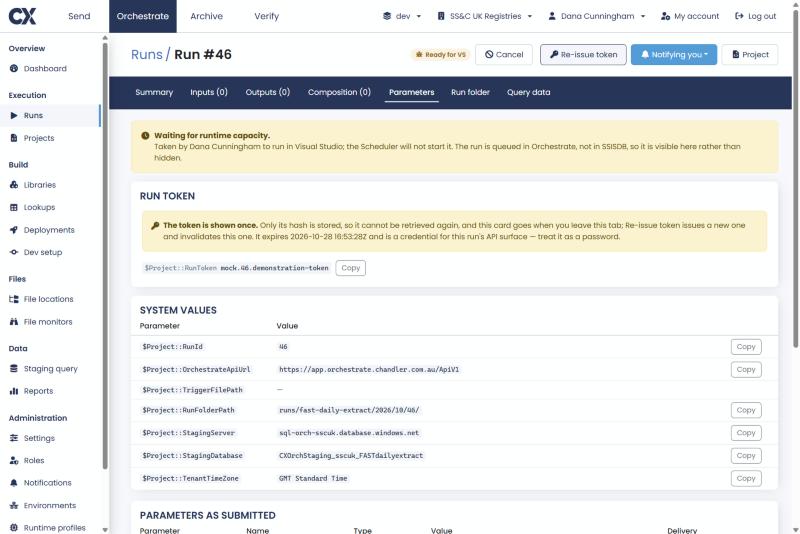
- Open the run and click Run in VS. The page moves to the Parameters tab and shows a Run token card.
- Click Copy beside
$Project::RunToken. The token is shown once; the card goes when you leave the tab, and only a hash of it is kept. - Below it, System values lists the other execution values with copy buttons:
OrchestrateApiUrl,RunId, the staging server and database. You will normally need the API URL and the run id as well.
The run's Summary now reads Ready for Visual Studio and its status badge Ready for VS. If you lose the token, Re-issue token in the header mints a new one and stops the old one working.
Heads up
The token is a credential for that run. It lets whoever holds it read and write the run folder and the run's record for as long as it is valid. Treat it as you would a password: paste it, use it, and do not commit it or leave it in a project parameter's design-time value.
Run the package
- In Visual Studio, open the project's parameters (Project.params) and set
RunTokento the token andOrchestrateApiUrlto the API URL from the run page. SetRunIdto the run's number. LeaveSqlAuthenticationempty; on your workstation the staging connection signs in with the token the Get Run Parameters task fetches, or interactively as you. - Make sure the connection manager's authentication method, or your
CX_ORCHESTRATE_STORAGE_CREDENTIALenvironment variable, points at your Visual Studio sign-in so the file tasks can reach the run folder. - Start the entry package. The first call the package makes moves the run to Running in Visual Studio; from there the timeline, inputs, outputs and counts fill in as the package runs, and you can watch them on the run page while you debug.
Every API call the toolkit makes is written to the SSIS Output window with its URL and status, with the token itself kept out of the log. If the first call fails, that log and the Dev setup page's prerequisites are where to look.
Finish the run
When the package has done what you wanted, go back to the run's Summary and click Mark succeeded or Mark failed, with an optional note. A run marked succeeded that submitted imports or compositions goes to Reconciling until CX Engine confirms them, as a runtime run would. A run marked failed closes at once.
If you do nothing, the token expires. A run whose package had started is then closed as Failed with a note that it was not marked finished before its token expired; one that never started is closed as Cancelled. The token's life is short (two hours from issue), so a debugging session that runs long will need the token re-issued.
When you'd use this
- Building a new project: switch on development mode, start runs from the run form with real parameters, and execute each one in Visual Studio until the package is right.
- Reproducing a failure: take the failed project's next scheduled run, step through the package, and see what the runtime saw.
- Testing a change to a file-triggered project against a real file: let the monitor create the run, take it, and run the package against the file it pulled.
Once the package is right, switch development mode off, push the branch and publish it: Publishing and deployment.