
A project is the unit of work in Orchestrate. One project is one SSIS solution and everything around it: a git repository that holds the packages, a staging database the packages load data into, the parameters an operator or a schedule supplies, the triggers that start it, the publishes that have deployed it, and every run it has ever done. Operators see projects as the things they run and monitor; developers see them as the things they build.
Creating a project takes a minute. It does not need anything in Visual Studio first: the repository is created for you, from a template if you choose one, and you check it out afterwards. Nothing reaches the integration runtime until the project is first published.
You need the Develop projects permission to create a project and to see its development tabs. Changing its run settings afterwards needs Manage projects.
What a project holds
Create a project
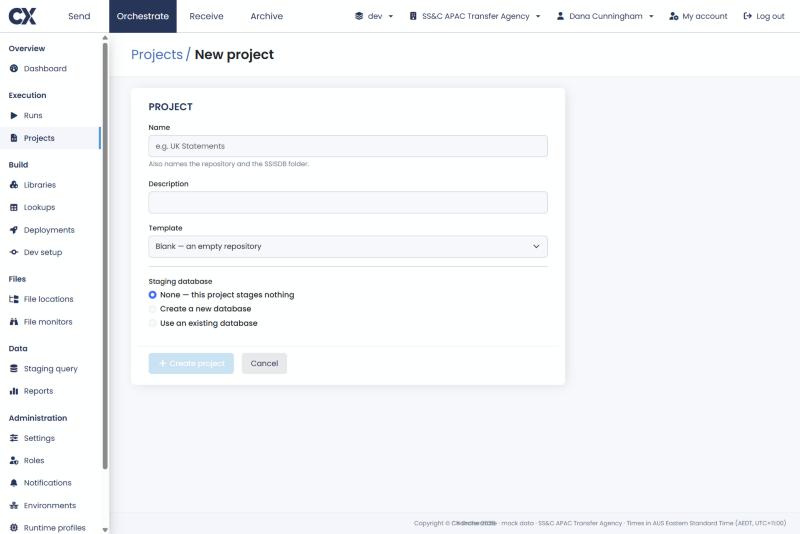
- Open Projects in the sidebar and click New project.
- Enter a Name. It also names the repository and the folder in SSISDB, so choose the name you want to live with: two projects whose names differ only by punctuation or spacing are refused, because they would share a folder.
- Add a Description if you like; it shows on the projects list.
- Choose a Template. Blank creates an empty repository with a README. The other entries are the starter projects on the tenant's template share, each shown with its package count.
- Choose what to do about the Staging database (see below).
- Click Create project. The button reads Creating the repository… while the repository is made, and you land on the new project's Overview.
Choosing a template
A template is a working SSIS project that already has the connection managers, project parameters and CX tasks wired for a common pattern. Starting from one means the plumbing is right from the first commit. The templates shipped with the platform are:
When the project is created from a template, the solution, project and database files inside it are renamed to the project's name, so the checkout opens in Visual Studio under the right name.
The staging database
Three choices:
- None: the project stages nothing. Suitable for a project that only moves files.
- Create a new database: Orchestrate provisions one on the tenant's staging server, copied from the plane's template database so it arrives with the standard schema and the access the platform needs. The server is filled in for you and the name is suggested as
CXOrchStaging_{tenant}_{project}; you can change the name. The option is unavailable if provisioning is not configured for the tenant, and the page says so. - Use an existing database: enter the server and database name of one that already exists.
Provisioning runs in the background. The Overview's Deployed card shows the staging database's state (Provisioning, then Ready, or Failed with the reason), and the Staging database not created notification event fires if it fails.
What you get
A new project starts enabled, allows manual runs, runs in parallel (several runs may execute at once), and takes the tenant's defaults for retention (inputs and outputs kept for 90 days, cool tier after 30), approval expiry (48 hours) and archive policy. If the template had exactly one package, it is recorded as the entry package now; otherwise the entry package is settled at the first publish. The creation is written to the audit log.
The project's Overview shows two cards. Definition is the run configuration: entry package, concurrency, runtime profile, steps and triggers. Deployed is the state of the code: the deployed tag, the SSISDB target, the packages, the repository, the staging database and the last run. Until the first publish it reads Not yet published, and the projects list marks the project the same way.
Settings worth checking
The Settings tab (Develop projects to see, Manage projects to save) holds the run settings the template cannot decide for you:
- Concurrency: Parallel, or Single instance so that a second run queues until the first finishes. Choose single instance for anything that must not overlap itself, such as a period-end that writes to the same staging tables.
- Default runtime profile: the size of runtime the project's runs ask for; a schedule can override it for its own window. Leave it at the tenant default unless the project is known to be heavy.
- Approval expiry (hours): how long an approval gate waits, from 1 to 720.
- Development mode: hold every run for execution from Visual Studio instead of the runtime. Useful while the project is being built; see Running a package from Visual Studio.
- Deploy SQL scripts: when on, a publish applies the repository's
db.*.sqlfiles to the staging database before deploying the packages. The scripts may create or alter procedures, views, functions, triggers, types, synonyms and permissions; they are applied in name order in one transaction. - Run folder retention: the archive policy, how many days inputs and outputs are kept (1 to 3650), and when they move to the cool tier, which must be before they expire.
Whether people may run the project by hand is on the Triggers tab, and the header's Disable button stops every trigger at once. A disabled project's schedules and monitors are disabled with it and re-enabled when it is.
Quick tip
Nothing can run until the project has been published once. The sequence is create, check out, build in Visual Studio, push a branch, publish. The next guides take it from the checkout.
When you'd use this
- A new feed, extract or letter batch needs its own solution and its own schedule.
- A pattern that exists elsewhere, such as a monitored import, is needed for a new client or fund: start from the same template.
- A project built in another environment is being brought here: use New from another environment instead, described in Version control and environments.