
Overview
Each environment, whether development, UAT or production, is its own Orchestrate with its own repositories, staging databases and integration runtime. A project's code moves between them as a whole tree, not as a build: the receiving environment gets the files as a new branch, somebody there publishes that branch, and the receiving environment builds and deploys it itself. Nothing in one environment can change what another environment runs without a person in the receiving environment publishing.
This guide covers the repository side first (branches, master and the History tab) and then promotion between environments. Connecting two environments in the first place is an administrator's task, described in Connecting environments.
Branches, master and history
A project's repository has one master, which is the published code, and any number of feature branches, named feature/{owner}/{name}, which are work in progress. A publish moves master to a branch and removes the branch; a push to master is accepted only when it fast-forwards. Tags are made by publishes (publish/{n}) and never by hand. The rules are enforced by the git host, so a push that breaks them is refused with the reason.
The History tab is the commit log, with a branch selector. Each commit shows its subject, author and time, and a publish badge on commits that were published, linking to the publish. Expanding a commit lists the files it changed and shows a line diff, which is as useful for a .dtsx as it ever is, which is to say it tells you which packages changed and roughly where.
The Files at tag tab is a read-only listing of the repository at the deployed tag, or at master, with each file's size, commit and modified time: a quick way to confirm what is actually deployed.
Releases
Every succeeded publish is a release, named {environment}/v{n}: dev/v13, uat/v4, prod/v7. Within its own environment a release shows as v{n}. The environment's name is a tenant setting, fixed once the first release exists.
A release carries its lineage: the set of releases its code contains, itself and everything the master it was published on top of contained. When a release moves to another environment the lineage goes with it, which is how an environment can say, before anyone publishes, "publishing this here loses prod/v7" even though it has never seen prod/v7's code. The publish page's Contains card lists the lineage.
Who connects to whom
Links between environments have a direction. The higher environment of a link makes every connection: it pulls tagged releases up from the environment below, and pushes master, a release or a branch down to it. A lower environment never connects to, or holds a key for, a higher one. So the usual path is dev tags a release, UAT pulls it, UAT tags it, production pulls it; a hotfix made in production is pushed back down to UAT and dev.
The permissions are Tag releases, used in the lower environment, and Pull and push between environments, used in the higher one. Buttons appear only where they apply: Tag only where a higher environment is connected above, Pull and Push only where this environment connects to a lower one.
Tag a release
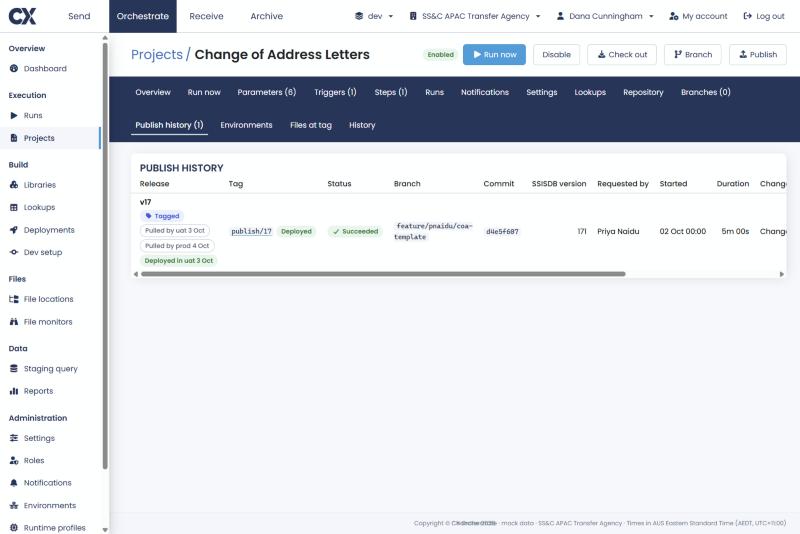
In the lower environment, on the project's Publish history tab, click Tag on a succeeded publish. The row gains a Tagged chip and the release becomes visible to every environment connected above. Untag withdraws it. Tagging sends nothing; it is a statement that the release is ready to be taken.
Pull a release
In the higher environment:
- Open the project that corresponds to the one below, and click Pull in its header.
- Choose From, the lower environment, and Its project. The first time, the dialog suggests the project with the same name; the choice is remembered as the link between the two projects, so names can differ afterwards. The project's Environments tab shows and changes these links.
- The tagged releases are listed live from the lower environment, each with who published and tagged it, and what publishing it here would mean: Already in master here, Publishing it here loses nothing, or Publishing it here loses … with the releases named. A release that has already arrived shows the branch it became.
- Choose a release and click Pull.
The release's whole tree arrives as a branch named feature/shared/{env}-v{n}, for example feature/shared/dev-v14. Nothing else changes: master and SSISDB are as they were. The Branches tab lists it with the state Replaces master, anybody with Develop projects can check it out and look, and anybody with Publish projects can publish it, exactly as in Publishing and deployment. The publish dialog repeats the loss warning and asks for an acknowledgement when there is one. After the publish, master is the pulled release's files.
Push a release, master or a branch
Pushing goes the other way, from a higher environment down, and is the path for a hotfix made in production or draft work that should go back to development.
- In the higher environment, click Push in the project's header.
- Choose To, the lower environment, and Its project. The project must already exist there; a push never creates one.
- Choose What to send: master, one of this environment's releases, or any open branch.
- Click Push.
The tree arrives in the lower environment as a branch, feature/shared/prod-master, feature/shared/prod-v7 or feature/shared/prod-{branch}, and waits to be published there. The Publish history row in the higher environment gains a Pushed to chip; once the lower environment publishes it, a Deployed in chip reports that.
Heads up
An arrived branch replaces master whole when it is published. SSIS packages do not merge, so there is no attempt to combine it with work master already has; the loss warning lists what would be overwritten, release by release and file by file. If the receiving master has work the branch lacks, the honest fix is to make the change again on top of the arrived branch before publishing it.
Create a project from another environment
When a project exists below but not here yet, New from another environment on the Projects list creates it. Choose the lower environment, its project (only those with tagged releases are offered), the release, the name it will have here, and the staging database choice as for any new project. The project is created with the release's parameters, steps, approval expiry and retention, linked to its source, and the release arrives as its first branch; you are taken to the Branches tab to publish it. This is the only time parameters travel between environments: after it, each environment's parameter definitions are its own.
It is refused if the release names lookup sets that do not exist here, because the packages would fail on their first query. Create the sets first.
Linking projects
The project's Environments tab lists the lower environments this one connects to and which project there this project is linked to. Link or Change picks a project on the other side, marking the one with the same name and any already linked elsewhere; unlinking is the icon beside it. A link is made by the first pull or push if none exists, so this tab is mostly for correcting a mistake.
A typical promotion
- A developer publishes
feature/jane/new-letter-rulein dev; it becomesdev/v14. - After a test run, they tag dev/v14.
- In UAT, the tester opens the project and pulls dev/v14. It arrives as
feature/shared/dev-v14, "loses nothing". - They publish it in UAT; UAT builds it and it becomes
uat/v6, containing dev/v14. - When UAT signs off, they tag uat/v6 and production pulls and publishes it the same way.
- A month later a fix is made directly in production as
prod/v8. Production pushes it down to UAT and dev, where it arrives asfeature/shared/prod-v8and is published so that every environment contains it.