
Overview
Moving a project between environments, described in Version control and environments, needs the two environments to be connected first. Connections are made from the top: the higher environment (UAT above dev, production above UAT) holds a key the lower one issued and uses it to pull releases up and push releases down. The lower environment holds nothing that could reach upward, and production accepts no inbound connection from any other environment.
Setting this up is a once-per-pair task for an administrator with the Manage environment links permission in each environment, on the Environments page under Administration. The page's banner names this environment, from the Environment name setting, and reminds you that its releases are named after it.
In the lower environment: allow the higher one and issue a key
- Open Environments. Under Higher environments click Allow a higher environment to connect.
- Enter its Environment name, exactly as that environment's own Environment name setting reads. It cannot change later.
- Tick what It may do: Pull this environment's tagged releases, Push its own releases (hotfixes) here, or both. At least one is required.
- Enter the Addresses it connects from, as IP addresses or CIDR ranges, comma separated. Required.
- Click Add and issue key.
- The key is shown once, with this environment's address beside it, each with a copy button. Copy both and pass them to the higher environment's administrator over a safe channel. Only a hash of the key is kept here.
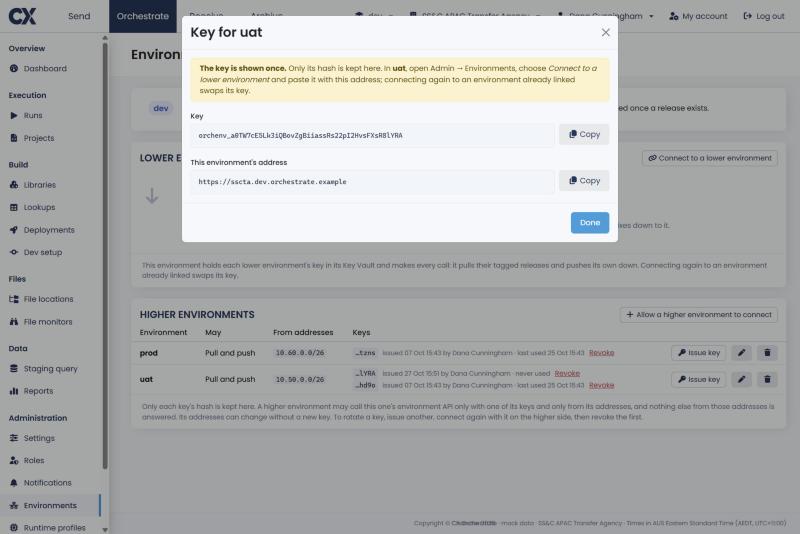
The row now lists the environment with what it may do, its addresses, and its keys, each with a hint of its value, who issued it and when, and when it was last used.
In the higher environment: connect with the key
- Open Environments. Under Lower environments click Connect to a lower environment.
- Paste Its address and The key it issued, and click Connect.
Before anything is stored, this environment calls the lower one with the key to confirm the address answers, that it is the environment the key names, that the toolkit versions agree and that the key allows at least one direction. The key is then kept in this environment's Key Vault. The row lists the environment, its address, what this environment may do there, and its Health: Not checked, Answering with the time and version, or Not answering with the message. Test checks again at any time.
From this point the project pages in the higher environment show Pull and Push, and the lower environment's publish history shows Tag.
Keys over time
- Rotate a key: in the lower environment click Issue key on the row to add a second key; in the higher environment connect again with the new key, which replaces the old one there; then Revoke the first key in the lower environment.
- Revoke stops that key at once. The higher environment's other keys for the same lower environment keep working, and releases already pulled are unaffected.
- Edit (the pencil) changes what the higher environment may do and the addresses it connects from, without touching its keys.
- Remove on the higher-environments side forgets that environment and every key it held; on the lower-environments side it forgets the environment and deletes its key from this environment's Key Vault, though the key stays valid on the other side until it is revoked there.
Every action on this page is written to the audit log under the entity Environment.
Rules the page enforces
- A link has one direction. An environment cannot be registered as both above and below this one, and the page says which it already is.
- An address that answers with this environment's own name is refused: you have pasted your own address.
- Connecting again to an environment already connected swaps its key, which is how a rotation lands.
Checking a pair works
- In the higher environment, Test the lower one and confirm Answering.
- In the lower environment, tag a release on any project.
- In the higher environment, open the matching project and Pull: the tagged release should be listed. You need not pull it.
- Back in the lower environment, the key's row should now show when it was last used.