
Overview
Most runs go from start to finish without anyone touching them. Three things interrupt that: a project can be built to pause between steps until somebody approves what the previous step produced; an operator can cancel a run that should not go further; and an administrator can pause the whole tenant so that nothing new starts until a problem is dealt with. This guide covers all three, and the re-run that often follows.
Approval gates
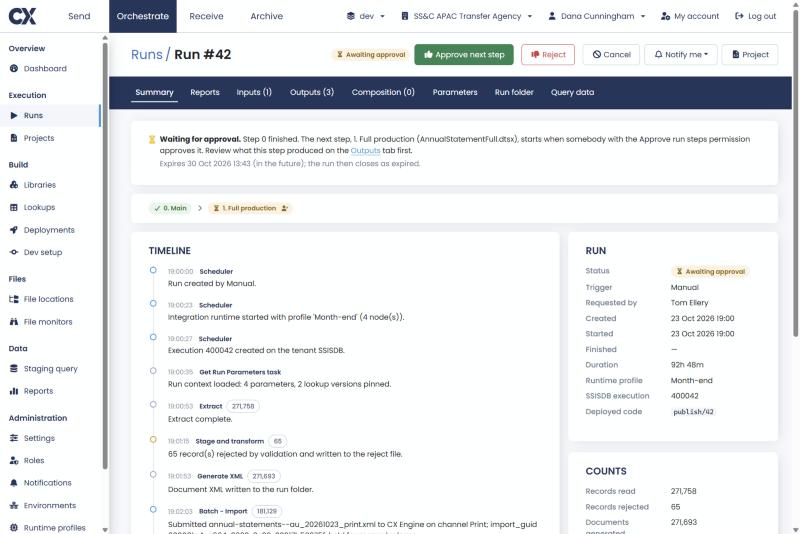
A project with more than one step can mark a step as needing approval. When the step before it finishes, the run stops with the status Awaiting approval instead of carrying on, and stays there until somebody with the Approve run steps permission decides. It is designed for the moment when a batch has been prepared and someone should look at it before it is released: the preview file is on the Outputs tab, the counts are on the Summary, and nothing has yet been sent.
The people who can approve are also, automatically, the members of the built-in Approvers notification group, so a subscription for the Awaiting approval event aimed at that group reaches exactly the right people (see Notifications).
Approve or reject a step
- Open the run. The banner reads Waiting for approval, names the step that finished and the one waiting, and gives the time the gate expires.
- Review what the finished step produced on the Outputs tab, and its counts on the Summary.
- Type a note if you want one kept on the run, up to 1,000 characters. It is shown on the Summary afterwards with your name and the time.
- Click Approve and start the next step to queue the next step, or Reject and end the run to close the run as Rejected.
Both decisions are written to the audit log, and the run's timeline records who decided and when.
If nobody decides
Each project sets how long a gate waits, from one hour to thirty days; new projects start with the tenant's default of 48 hours. When the time passes with no decision, the Scheduler closes the run as Approval expired and the timeline records that nobody approved or rejected the step in time. An expired run cannot be resumed; the work has to be started again as a new run.
Quick tip
The Awaiting approval tile on the dashboard counts runs that are parked at a gate right now. If it is not zero at the end of the day, somebody is going to have an expired run in the morning.
Cancelling a run
Anyone with the Cancel runs permission can cancel a run that has not finished, with the Cancel button in the run's header. What happens depends on where the run is:
- A run that has not started executing (Queued, Held, Waiting for capacity, Awaiting approval, or one held for Visual Studio) is cancelled at once. The status becomes Cancelled and the timeline says who cancelled it before it started.
- A run that is executing on the runtime records a cancellation request and keeps its status until the Scheduler stops the execution. The timeline notes that cancellation was requested and is waiting for the Scheduler; a few moments later the run closes as Cancelled.
There is no confirmation dialog, so click deliberately. A cancelled run keeps everything it had produced up to that point: its inputs, any outputs the package had already registered, and its timeline.
Heads up
Cancelling stops the package; it does not undo what the package had already done. A run cancelled after it submitted an import to CX Engine has still submitted that import. Check the Outputs tab's CX Archive card before you assume a cancelled run sent nothing.
Pausing new runs
Sometimes the right thing is for nothing new to start: a publish is about to replace a project's code, an upstream system is sending bad files, or an incident is being worked. Rather than disabling schedules and monitors one by one, an administrator can pause new runs for the whole tenant.
Pause
- Open Settings under Administration (Manage tenant settings or System administration permission).
- In the Runs card at the top, click Pause new runs.
From that moment every trigger still fires, but each run it creates is recorded as Held (runs paused) rather than queued: schedules, file monitors, API calls and the run form alike. Nothing already executing is affected. A banner on every page reminds everyone that new runs are paused, and the Runs card shows how many are held.
Resume
Click Resume runs on the same card. The held runs are queued for the Scheduler in the order they arrived, and the message confirms how many. A held run you do not want to go ahead can be cancelled from its page before you resume.
Pausing and resuming change a tenant setting, so they are recorded in the catalogue audit log with your name.
Running something again
When a failed run's cause was the input or the data rather than the project, the fix is a new run with the same parameters. Start it from the project's Run now tab (see Starting a run): the Parameters tab of the failed run shows the values it used, so you can enter the same ones. A file that arrived through a monitor can be re-processed by placing a corrected file at the monitored location, where the monitor will see it as a new arrival.
For a run that failed inside the platform, say a runtime that would not start or an import CX Engine was unable to accept, the timeline's last entry says so, and the run usually needs nothing from you beyond starting it again once the platform issue is cleared. When the cause is the package itself, the project's developer will want the run number: it points them at the timeline, the inputs and the deployed code in one place.
When you'd use this
- Releasing a prepared batch after checking its preview: approve the gate.
- Stopping a run that was started with the wrong period: cancel it, then start it again.
- Holding everything while a developer publishes a fix: pause new runs, publish, resume.
- Keeping an upstream outage from creating a queue of failures: pause, and cancel the held runs you do not want before resuming.