
Overview
Most runs start themselves, from a schedule, a file monitor or an external system. A manual run is for everything else: a one-off period-end, a re-process after a corrected input file, a test of a newly published project, or simply a project that is designed to be started by a person each time it is needed.
A manual run uses exactly the same project, parameters and runtime as any other trigger; the only differences are that you supply the parameter values yourself and your name is recorded as the requester. Whether a project can be run by hand at all is a setting on the project, Run manually, which the project's developer controls from its Triggers tab.
You need the Run projects permission. It includes the right to view runs, so you can follow what you started.
Open the run form
There are two ways in:
- From the Runs list, click Add run, search for the project and click Continue. The picker only offers projects that are enabled and allow manual runs; one that has never been published is tagged not published yet.
- From the project itself: open Projects, choose the project, and open its Run now tab.
If the tab says Run manually is off, the project runs only from its schedules, monitors and API trigger, and the form is not shown. If the project is disabled, the form is shown but Start run is unavailable until someone enables it.
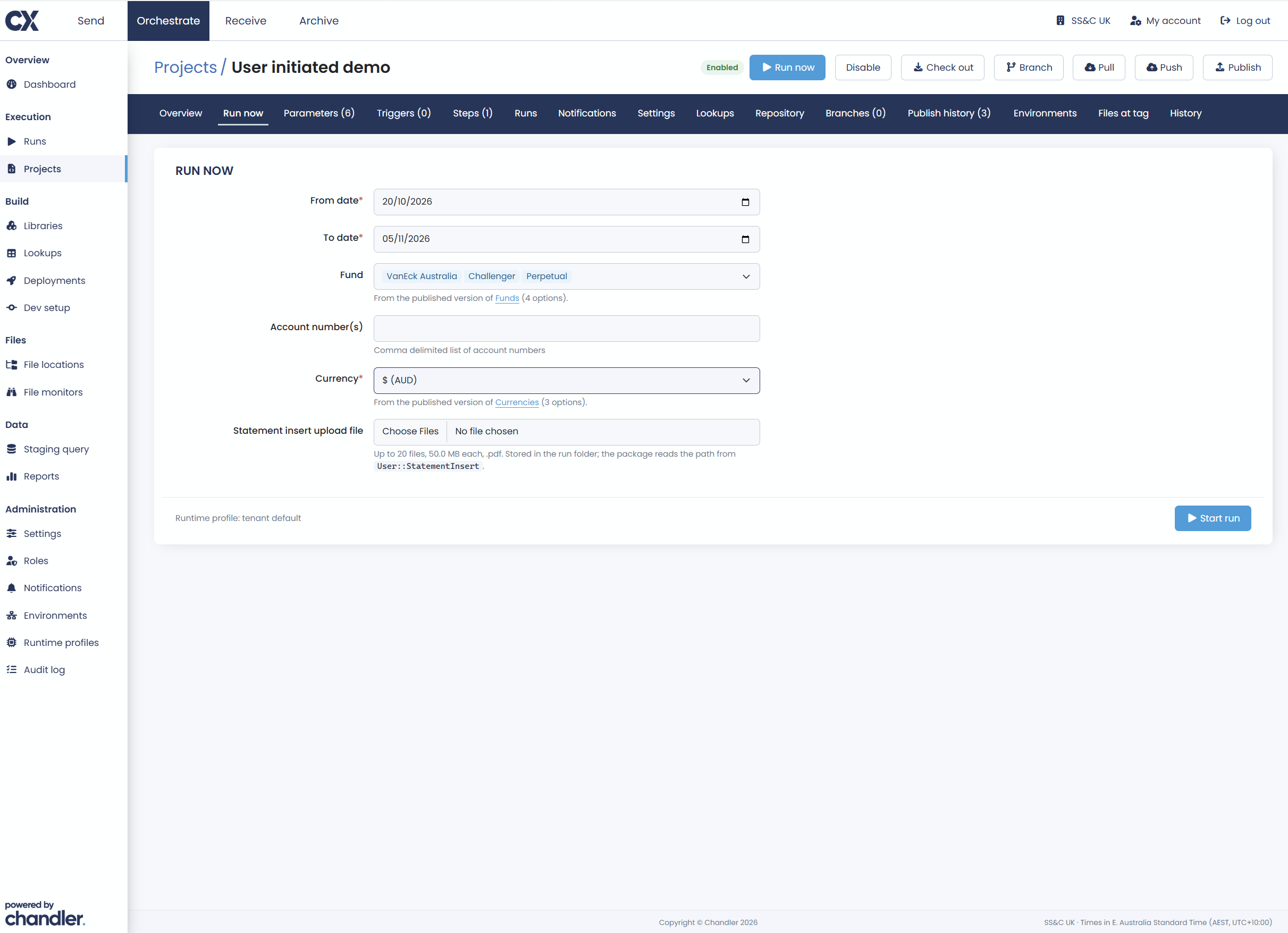
The Run now tab of a project with a date parameter, a pick-list parameter and a file upload, before Start run is clicked.
Fill in the parameters
The form shows one field per parameter the project declares, in the order its developer set, with a red asterisk on the ones that are required. The kind of field depends on the parameter's type:
System values, the ones Orchestrate supplies to the package itself, are not shown; there is nothing for you to enter.
Defaults and expressions
A field that already holds a value has a default from the project. Some defaults are expressions rather than fixed values, which is how a project can ask for "last month" without anyone typing a date. The form resolves them when it opens, so what you see is the actual date, and you can change it. You can also type an expression yourself into a date or text field:
Any of these can carry an offset in days, months or years: @today-1d, @firstDayOfMonth+2d, @today-1m. Anything that is not a recognised expression is taken as the literal value you typed.
Quick tip
The runtime profile the run will use is shown under the form, either the project's own or the tenant default. If a run keeps waiting for capacity, that is the setting a developer would look at.
Attach input files
A file-upload parameter takes the file straight from your computer; there is no need to put it on an SFTP folder first. When you start the run, the files are checked before anything is created: the count against the parameter's limit, each file's size against the tenant's largest-file setting (50 MB unless changed), the extension against the accepted list, and the contents against what the extension claims. A file that fails any of these stops the run from being created, and the message says which file and why.
Accepted files are stored in the run folder under inputs/ in a folder named for the parameter, recorded on the run's Inputs tab as uploaded inputs, and handed to the package as paths.
Start the run
- Check the required fields. Submitting with one empty shows These parameters are required and names them.
- Click Start run. The button reads Starting while the run is created and the files are stored.
- You land on the new run's page. Its first timeline entry reads Run created from the run-now form by you, and its status is Queued.
From here the Scheduler takes over: it picks the run up, starts the runtime if it is not already running, and executes the package. Watching that progress is covered in Reviewing a run.
Two situations change what happens at this point:
- If runs are paused for the tenant, the run is created as Held rather than Queued and waits until runs are resumed.
- If the project is in development mode, the run is created but held for a developer to execute from Visual Studio rather than on the runtime. The run page says so.
Every manual run is written to the audit log as RunStarted with your name.
When you'd use this
- Processing a corrected input file after a failed monitor-triggered run.
- Running a period-end project for a date other than the one its schedule would choose.
- Checking a newly published project with a small test file before its schedule next fires.
- Any project that is designed to be run on request rather than on a timetable.