
Overview
A run page is the complete record of one execution. It is where you go to find out why a run failed, to collect the file it produced, to check the counts before a batch goes to print, or to confirm what parameters a scheduled run actually used. Everything on it is sourced from the package itself and from the platform's own records, so it reflects what happened rather than what was supposed to happen.
Open a run by clicking it on the Dashboard, the Runs list or a project's Runs tab. The page needs the View runs permission; some tabs and buttons need more, as noted below.
The header
The top of the page shows the run number, the project, and the status badge, followed by the actions that apply to the run in its current state:
- Approve next step and Reject, while the run is awaiting approval (Approve run steps permission).
- Cancel, while the run has not finished (Cancel runs permission).
- Run in VS or Re-issue token, for developers, while the run has not started on the runtime (Issue run tokens permission).
- Notify me, while the run has not finished: a dropdown offering By email, By SMS or By email and SMS, which sends you one message when the run next finishes a step or closes. It becomes Notifying you once set, with Stop notifying me to cancel.
- Project, a link to the project the run belongs to.
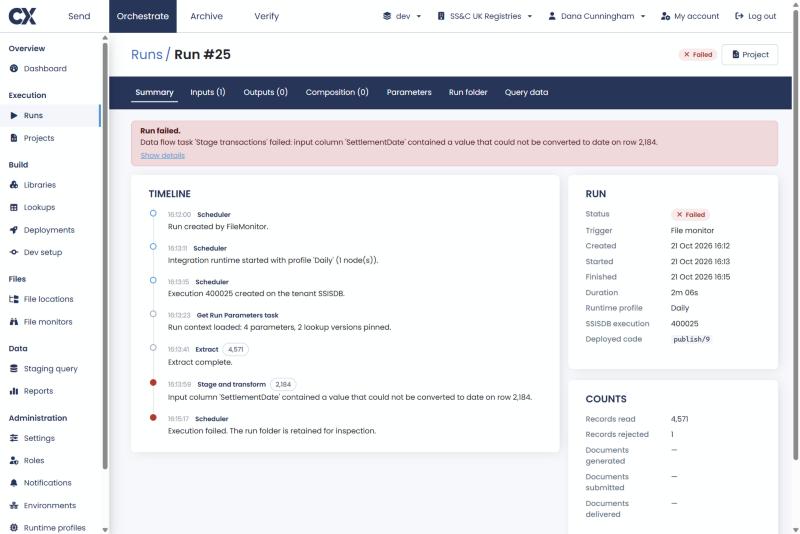
Below the header a banner appears when the run needs explaining: Waiting for approval with the expiry time, Run failed with the status message, Held because runs are paused, or Waiting for runtime capacity with a note that the run is queued in Orchestrate rather than on the runtime.
Summary
The Summary tab is the first tab and the one you will read most.
Steps
A project that runs more than one package shows its steps as a row of chips: done, current, awaiting approval, failed or skipped, with an icon on the steps that need approval. A single-package project has no step row.
Timeline
The Timeline card is the narrative of the run: each entry has a time, a source, an optional count and a message. Entries come from the platform (the run was created, the runtime started, the execution began) and from the package itself, through the CX Raise Event and Assert tasks its developer placed in it. By default the SSIS engine's own warnings and errors are mirrored here too, so a package failure appears with the task that failed and the error it raised.
Read a failed run's timeline from the bottom up: the last error entry is usually the cause, and the entries before it tell you how far the run got.
Run and Counts
The Run card lists the facts: status, trigger, who requested it, when it was created, started and finished, the duration, the runtime profile it used, the SSISDB execution it ran as, and Deployed code, the publish tag of the project version that ran. That last one matters when a run behaves differently from last week's: it tells you whether the code changed.
The Counts card shows records read and rejected and documents generated, submitted and delivered. These come from the package, because only the package knows the file format; a package that does not report them shows nothing here.
Inputs and Outputs
The Inputs tab lists every file the run took in: files pulled by a monitor, uploaded on the run form, or fetched by the package, each with where it was fetched from. The Outputs tab lists every file the package registered as a product of the run, with its document, record and line counts where the package reported them, its size, and for print files the sheet and impression counts. Each tab's label carries the number of files.
At the top of Outputs, the CX Archive card lists each import the run sent to CX Engine: the CX reference, channel, file, document count and status (Accepted, Rejected, Unconfirmed). When the tenant's Archive link is set, View in CX Archive opens the import there.
Working with files
With the Download run files permission, clicking a file name opens it in a new tab when the browser can show it (a PDF, an XML file, a text log) and downloads it otherwise; each row also has preview and download buttons. The Refresh button re-reads the list, which is useful while a run is still writing. A list/icon toggle is remembered between visits.
With Manage run files, tick boxes appear and you can delete files, singly or several at once. The dialog warns if the run has not finished. A deleted file is removed from storage but its row stays, marked Deleted, so the record of what the run produced is kept. A file under legal hold cannot be deleted, and an attempt to delete a selection that includes one deletes nothing.
Heads up
Files expire under the project's retention policy, 90 days by default for inputs and for outputs. After that the row remains with the status Expired but the file is gone. If you need an output kept longer, download it, or ask for the project's retention to be changed.
Composition
For a project that composes documents, the Composition tab lists each composition the run requested: the job reference, the payload file, status, records and pages, when it was requested and how long it took. Expand a row to see the files it produced, grouped by kind (the merged PDF, the zip of individual PDFs, the PostScript, the record report, the journal, the impression report) and links to the engine log and result files. A second table lists the document operations the run performed on those PDFs: stitches, splits, conversions to PostScript and page counts, each with its input, output and outcome.
If a package is run again for the same run, each composition and operation is redone and the row shows the latest attempt.
Parameters
The Parameters tab records what the run was given. Parameters as submitted lists each declared parameter with its name, type, the value used and how it reached the package: as an execution parameter, or through the CX Get Run Parameters task. A secret shows the Key Vault secret name, never the value. System values lists what Orchestrate supplied (the run id, the API address, the staging server and database and so on) with a copy button on each, which developers use when running a package locally. Lookup versions pinned on this run names the version of each lookup set the run read, so a result can always be traced to the reference data of the day.
Run folder
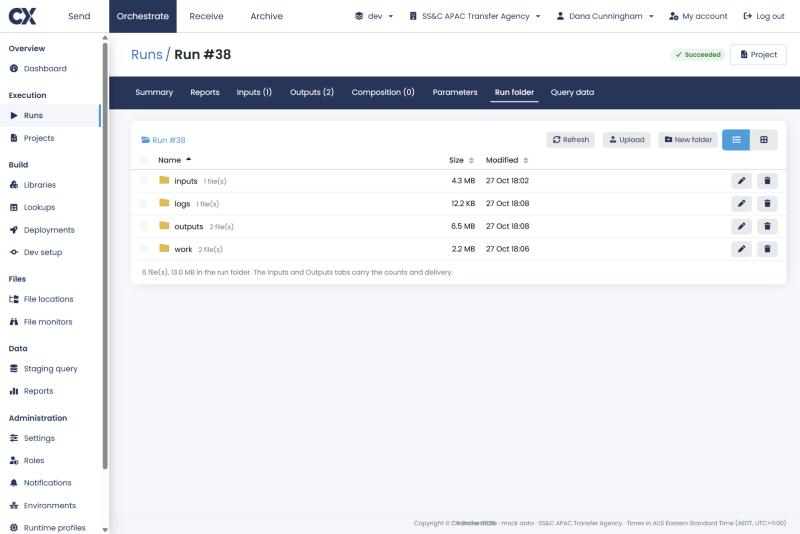
Every run has a folder in the tenant's storage, named runs/{project}/{year}/{month}/{run number}/, with inputs/, outputs/ and work/ inside it and whatever else the package created. The Run folder tab is a file browser over it: a breadcrumb at the top, a sortable list of files and folders, an Input or Output badge on the files the package registered, and the same preview and download links as the Inputs and Outputs tabs. Payloads, logs and working files that were never registered are only visible here, which makes this the place to look when a composition's engine log or a package's intermediate file is what you need.
With Manage run files the tab also offers Upload (up to 50 files at a time, replacing a file of the same name), New folder, Rename, and Move and Delete on a selection. These are for correcting a run by hand, for example placing a file a package expects before a developer re-executes it.
Reports and Query data
Two further tabs appear when they apply. Reports is shown when a report has been written against this project's staging data and bound to the run, and lets you run that report for this run without leaving the page; see Reports. Query data, for people with the Query staging permission, opens a read-only query against the project's staging database scoped to this run; see Staging query.
Investigating a failure
- Read the Run failed banner. It carries the status message, which names the category: a package step, an import CX Engine rejected, a composition that failed, or a runtime that would not start.
- Open the Timeline and find the last error. For a package failure it names the task and the SSIS error; for a composition failure it names the composition and the records that failed.
- Check Inputs. A wrong or incomplete input file is the most common cause and is visible by its name, size and counts.
- For a composition failure, open the Composition tab and the engine log beside the payload.
- Check Deployed code on the Summary against the project's publish history if the run worked last time: a recent publish may be the change.
- Decide what to do: fix the input and start a new run, ask a developer to look, or cancel and leave it.