
Overview
Orchestrate sends email and SMS when something happens that a person should know about: a run failed, a run is waiting for approval, a file did not arrive by the time it was due, a publish failed. Who hears about what is decided by subscriptions, which name an event, a scope (one project, every project, or the platform) and a recipient: a notification group, an address, or whoever started the run. Each person also has a page of their own where they set their contact details, mute a channel or pause everything while they are away.
Email goes through Mailgun and SMS through Esendex, using the tenant's own accounts configured in Tenant settings. The admin pages need Manage notifications; a project's own Notifications tab is also open to people with Manage projects, for that project's subscriptions.
The events
Run, approval, publish and monitor events are subscribed per project or for all projects; platform events are subscribed at platform scope. One more message, the Failure digest, is not subscribed to directly: when several runs of one project fail or expire for one person within the digest window (ten minutes by default), they arrive as one message rather than several.
Subscriptions
Open Notifications under Administration. The Subscriptions tab lists every subscription with who it reaches, what it is for and which events it carries, with email and SMS marked on each. Filter by scope or by text.
Add a subscription
- Click Add subscription.
- Choose Who: a notification group (shown with its email and mobile counts), an email address and/or mobile number, or Whoever started the run. The last suits run events on projects people start by hand; a scheduled run has no requester.
- Choose For: one project, all projects (including ones created later), or the platform.
- Tick the Events, by email and by SMS, with a tick-all per group. The scope limits which events are offered.
- Add a Note if useful, leave Enabled ticked, and save.
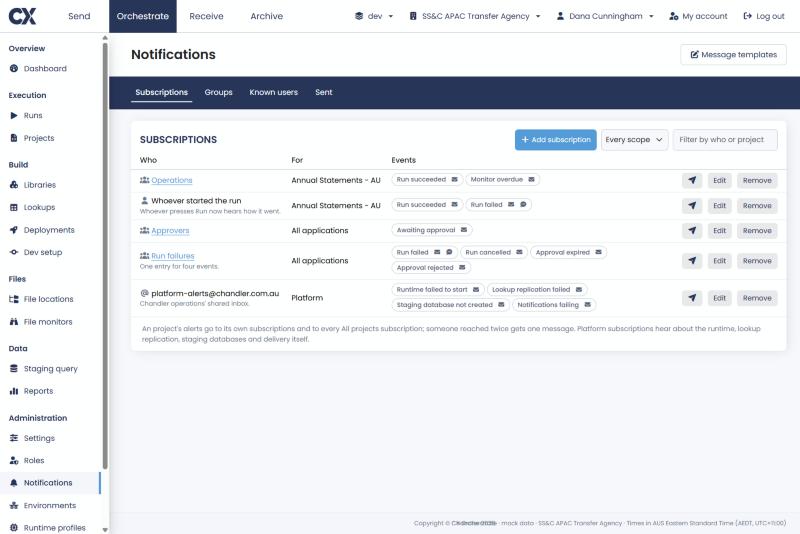
A subscriber has one subscription per scope; to change what they get, edit it. A mobile number is entered in international form (+61…). The paper-plane button on a row sends a marked test message to everyone the subscription reaches, which goes out on the Scheduler's next pass and appears on the Sent tab.
A project's alerts go to its own subscriptions plus every All projects subscription, and a person reached by both gets one message. The project's own Notifications tab shows its subscriptions with the all-projects ones listed read-only underneath.
Groups and known users
A notification group is a named set of people. Its members can be added by hand from the people who have signed in, added as external contacts who never sign in (a print room's shared mailbox), or synced from a role: a group with Sync with role set gains each holder of that role when they sign in, and loses them when they sign in without it. The built-in Approvers group is synced to the Approve run steps permission and cannot be edited; a subscription for Awaiting approval aimed at it always reaches exactly the people who can approve.
The Groups tab lists groups with their synced role, member and email counts and subscriptions; a group's page shows its members with their source (Manual, Role, Contact, Permission) and last sign-in. A group with subscriptions cannot be deleted until they are removed.
The Known users tab lists everyone who has signed in, with their email, mobile, roles, last sign-in and groups, and badges for people who have muted a channel, paused, or left. Edit changes a person's contact details and mutes, and can mark them as having Left, which removes them from every group and stops every message. Forget goes further and clears their contact details from the record.
Message templates
Every event has a shipped template for its email and SMS, and Message templates (the button at the top of the Notifications page) lets you change them. The list shows each alert, whether its template is Edited or Default, and when it changed. The editor has fields for the from name, from address (which must be on the tenant's Mailgun domain), reply-to and subject; a visual and HTML editor for the message; the SMS text with its character and part count; and a Placeholders panel that inserts values such as the run's id, status and link, the project's name, or the monitor's expected-by time. Preview renders the template with sample values, Send test to me queues a test to your own email, and Reset returns to the shipped default. A blank field falls back to the default.
Templates are applied when a message is sent, so a fixed template reaches alerts still waiting in the queue.
The Sent list
The Sent tab is the outbox, newest first, with a status filter and a search by recipient or subject. A message is Pending until sent, then Sent; a refusal is retried after 1, 5, 15 and then 60 minutes and becomes Failed or, after a day, Expired, both of which offer Retry. Suppressed means the message was not sent on purpose: the recipient has left, paused or muted the channel, the SMS cap was reached, or the message was folded into a digest. For email, Mailgun's delivery events update the row afterwards: Delivered with the time, Undelivered when the recipient's server refused it, Delayed, or Complained. Click a row to read the message and its delivery detail.
Messages are kept for the tenant's Keep sent messages setting, 90 days by default.
Each person's own settings
My notifications, under the account menu, is where a person sets the email and mobile that alerts reach them on, mutes email or SMS, and pauses everything for an hour, eight hours, a day or a week while on leave. Nothing is saved up during a pause. The page also lists the runs they have asked to be told about with Notify me on a run page, which fires once when the run next finishes a step or closes, and which a mute does not stop, because they asked.
A sensible starting set
- An Operations group: Run failed, Approval expired and Monitor overdue for all projects, by email and SMS.
- The Approvers group: Awaiting approval for all projects, by email.
- A Developers group: Publish failed, Lookup replication failed and Staging database not created.
- An administrator's address at platform scope: Runtime failed to start, Notifications failing and Daily SMS cap reached.