
Overview
CX Orchestrate is the batch engine of the CX platform. It sits between your registry or administration systems and CX Engine: it collects the files those systems produce, runs the SSIS projects your team builds against them, composes the documents and submits the imports that CX Engine then sends and archives, and keeps a complete record of every run. Where Send and Archive are about individual communications, Orchestrate is about the batches that produce them.
It is used by two kinds of people, often in the same team. Operators watch the work go through, start runs when a person needs to, approve the ones that wait for a decision and investigate the ones that fail. Developers build the projects that run, in Visual Studio with the CX toolkit, and publish them. Administrators look after roles, notifications and the tenant's settings. These guides are written for all three, and each one says at the top who it is for.
The objects you will meet
The life of a run
Everything in the module meets in a run, so it is worth seeing one whole:
- A trigger fires: a schedule reaches its time, a monitor sees a complete file, a partner calls the API, or an operator clicks Start run. The run is created Queued, with its parameters resolved and its run folder made.
- The Scheduler picks it up, starts the integration runtime if it is cold, and executes the project's entry package on it, handing the package a token that identifies the run.
- The package does its work through the CX toolkit: reads its parameters, downloads its input, loads the staging database, registers what it produces, reports its counts, and hands documents to CX Engine for composition or import.
- If the project has an approval gate, the run parks until somebody approves the next step.
- The run is Reconciling until CX Engine confirms what it was sent, then closes as Succeeded or Failed, and the people subscribed to that event are told.
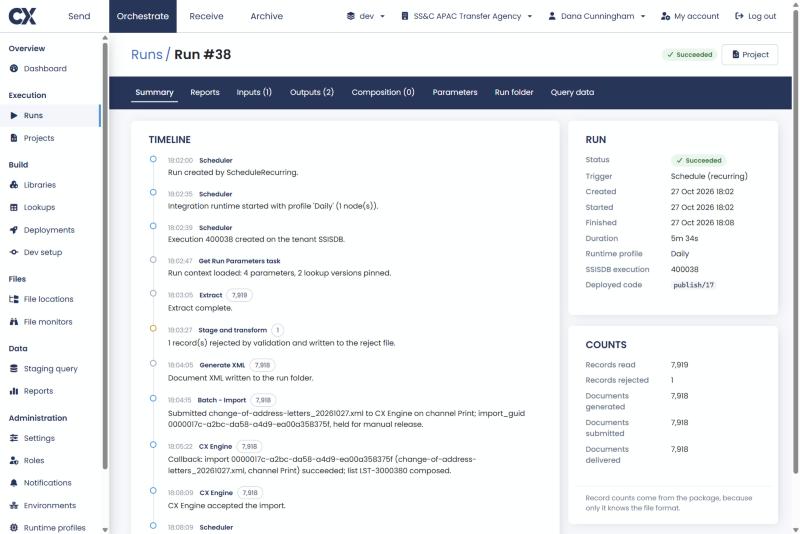
- The run page keeps the record: the timeline, the files, the counts, the parameters and the version of the code that ran. The files expire under the project's retention policy; the record does not.
Finding your way around
Orchestrate is a tab in the platform's top bar, beside Send, Receive, Archive and the other modules your tenant has. Inside it the sidebar is grouped by activity:
- Overview: the Dashboard, the day at a glance.
- Execution: Runs and Projects.
- Build: Lookups, Deployments and Dev setup, for the people who build.
- Files: File locations and File monitors.
- Data: Staging query and Reports.
- Administration: Settings, Roles, Notifications, Environments and the Audit log.
You see only the entries your roles allow. Every page of a project or a run has its own address, so Back and Forward move between tabs and a link to a run opens the run.
How the guides are arranged
- Operations: monitoring, starting, reviewing and intervening in runs. Start here if you run the day.
- Projects: from a new project through development, triggers and publishing to promotion between environments. Start at Creating a project if you build.
- Lookup tables, File locations and monitoring and Reports and queries: the objects both audiences share, each in one place.
- System configuration: roles, notifications, settings and environment links, for administrators.
Each guide opens with what you will learn and who it is written for, and closes with the situations it applies to. Labels in bold italic are what you will see on screen.