
Overview
Orchestrate keeps no user accounts. People sign in through ChandlerAuth, the same single sign-on as the rest of the platform, and their sign-in carries the names of the roles they hold for this tenant. Orchestrate's job is to say what each role name means here: which permissions it grants. An administrator maintains that mapping on the Roles page, and the result is applied the next time each person signs in.
Because the mapping is per tenant, the same role name can mean different things in different tenants, and a role name ChandlerAuth sends that is not listed here grants nothing at all.
The Roles page needs the Manage roles permission.
How access is decided
- A person signs in. ChandlerAuth's assertion names the tenant and, for that tenant, the person's roles. Someone with no roles for this tenant cannot sign in to it.
- Each role name is looked up on this tenant's Roles page. The permissions of every enabled role the person holds are added together, plus the ones those imply.
- The result is kept in the person's session for the day. A change to a role takes effect at their next sign-in, not immediately.
Anyone can see what this produced for them on their My account page: the roles asserted for them and a table of every permission with a tick against the ones they hold. A page they cannot open says Your roles do not give you access to this page and names the permissions it needs, with a link to that table.
Role membership is managed in ChandlerAuth, by whoever administers your organisation's users there. Orchestrate decides only what a role grants.
The permissions
The Query staging and report permissions disappear from the role pages while the corresponding tenant feature is switched off in Settings; the grants are kept and come back when it is switched on.
Set up a role
- Open Roles under Administration. The list shows each role name with how many permissions it grants, whether it is enabled, and when it last changed; roles you hold yourself are marked.
- Click Add role and enter the Role name exactly as ChandlerAuth sends it for this tenant (spaces are removed). The role starts enabled and grants nothing.
- On the role's page, tick the permissions under each group and click Save mapping. A permission that includes another says so beside it.
- Disable stops a role granting anything without removing its mapping; Enable restores it.
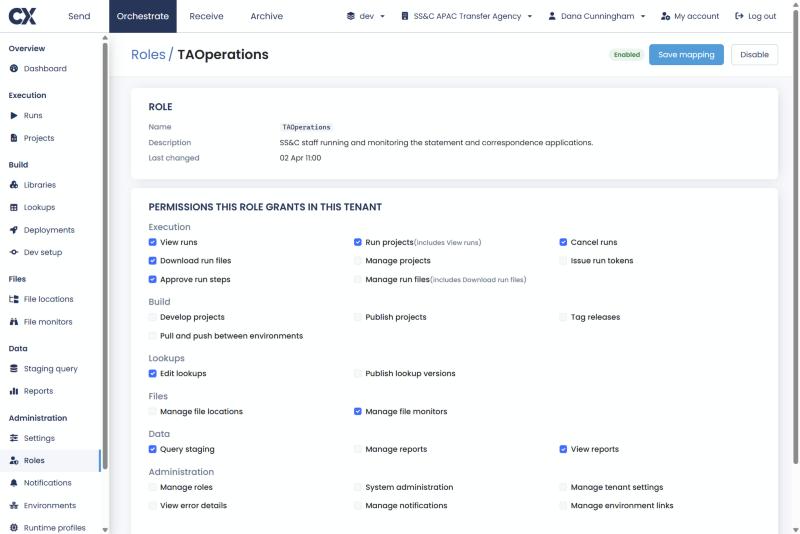
The last enabled role that holds Manage roles cannot lose it or be disabled, so a tenant can never lock itself out of this page. Every change is written to the audit log.
Suggested roles
Most tenants settle on three or four:
Grant Approve run steps deliberately: it decides who can release a batch that is waiting at a gate.