
Overview
A lookup set is a table of reference data that Orchestrate keeps centrally and writes into the staging database of every project that subscribes to it. Product codes and their descriptions, fund mappings, branch addresses, the valid values for a parameter: anything a package needs to join to and an operator is better placed to maintain than a developer. Operators edit the rows in the browser; packages read the table as lkp.{Set} in their own staging database; and every change is a numbered version, so a run can always say which version it used.
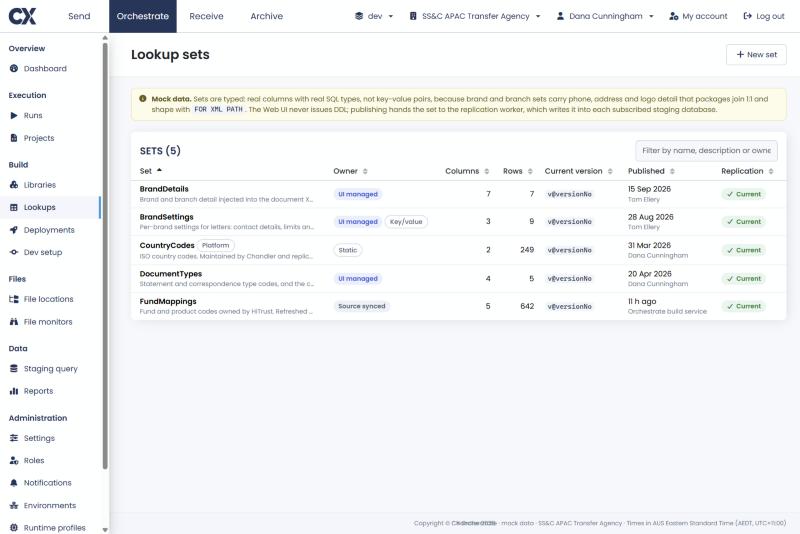
Lookups are found under Lookups in the sidebar's Build section. Two permissions apply: Edit lookups to create sets and change rows, and Publish lookup versions to publish and roll back. Either one opens the pages.
How a set reaches a package
- A set is created with typed columns, and rows are added to its draft.
- Somebody publishes the draft, which becomes the set's current version,
v1,v2and so on. - Each project that has subscribed to the set on its Lookups tab has the version written into its staging database as the table
lkp.{Set}. The table is built alongside the old one and swapped in whole, so a package never reads a half-written table. - A run created while a subscribed table is still being written waits for it, and records the version of every subscribed set on its Parameters tab.
A set that is UI managed is edited here. A set whose owner is Source synced is refreshed from the tenant's registry by a package and is read-only in the browser, as is a Static set and any set marked Platform, which Chandler maintains for every tenant.
Create a set
- On the Lookups list click New set.
- Enter a Name: letters, digits and underscores, starting with a letter, up to 64 characters. It becomes the table name, so
Productsrather thanProduct list. - Choose the Source (UI managed for a set you will maintain here) and the Shape: Table, one row per entity with typed columns, or Key/value, rows of scope, key and value that are pivoted into one wide row per scope when published.
- Add the columns. Each has a name, a SQL type, and flags: Key (part of the business key; at least one column must be a key, and a key cannot be nullable), Nullable, Display in pick lists (the label a pick list shows; the key is what it submits), and an Index group for columns that should be indexed together.
- Save. The set exists with no rows and no version.
The types are nvarchar (a length from 1 to 4000), int, bigint, decimal (precision and scale), bit, date, datetime2 and uniqueidentifier. For a key/value set the columns you add are the scope columns; Key and Value are added for you, and the keys themselves are declared on the Schema tab, each with a type, whether it is required, a default and a description.
Edit the rows
The set's Rows tab is a grid with a filter box, sortable headers, and Edit and Remove on each row. Add row opens a dialog with one field per column, showing its type and whether it is required; in a key/value set the key is picked from the declared keys and the value is typed accordingly. Values are checked against the column types as you save: a bit accepts 1, true or yes and their opposites; a date accepts yyyy-MM-dd or d/MM/yyyy.
Edits accumulate in a draft, shown in the header as Draft v{n} unpublished. Nothing reaches any staging database until the draft is published, and Discard draft throws the pending edits away. This is what makes it safe to work through a long list of changes over a day and publish them together.
Import from CSV
- Click Import CSV and paste the CSV text, with a header row naming the columns. The delimiter is detected.
- Tick Replace all rows to make the file the whole set; leave it clear to merge, updating rows whose keys exist and adding the rest.
- Click Preview. The result says how many rows parsed and how many the set will have before and after, and lists any problem: a value of the wrong type, a column the set does not have, a key repeated in the file.
- Click Import into draft. The rows are in the draft and the message reminds you to publish.
Download exports the current rows, or any earlier version from the Versions tab, as Excel or CSV. A round trip of download, edit in Excel, save as CSV, paste into Import is the practical way to make a large change.
Publish a version
- Click Publish draft in the set's header (or Publish new version when there is no draft, which republishes the current rows unchanged).
- Write What changed. It is required, and it is what the version history shows, followed by the row counts that changed.
- Confirm. Every draft row is validated again; for a key/value set a required key with no value and no default for some scope stops the publish.
The draft becomes the current version and the page moves to the Versions tab. Each subscribed project's table is queued for replication and written by the lookups worker within a minute or so. The Staging databases tab shows each subscribed project with the version its table holds, the status and when it was written; the Lookup publishes tab of the Deployments page shows the same across every set, with a filter for pending or failed replication. A replication that fails, usually because the project has no staging database yet, raises the Lookup replication failed notification event.
Heads up
A publish is refused while any subscribed project has a run executing, with the header reading Publish blocked: N run(s) reading this set. The table swap is safe, but a run that read half its data from one version and half from the next would not be. Wait for the run, or publish between runs.
Roll back
On the Versions tab, every version shows its row count, schema hash, who published it and when, and the change note. Roll back on an earlier version republishes its rows as a new version, so the history stays a straight line and every subscribed table is refreshed as for a publish. The same run check applies.
Subscribe a project
On the project's Lookups tab ("Lookup tables in this project's staging database"), tick the sets the project's packages read and click Save; this needs Manage projects. Each row shows the table name, the current version, the version in staging and the replication status. New tables are written within a minute. Unticking a set leaves its table in place but stops refreshing it. A set cannot be deleted while any project subscribes to it or any parameter is bound to it.
Pick lists from a set
A project parameter of type Single pick, Multi pick or Hierarchical pick names a lookup set and a display column. On the run form the operator sees the display values from the set's current version and the package receives the key. Report parameters can do the same. A set used this way needs no subscription; the pick list reads the central copy.
When you'd use this
- A mapping the business changes a few times a year and nobody wants in a package: a UI-managed table set, subscribed by every project that uses it.
- The valid values for a run parameter: a set with a display column, bound to a Single pick parameter.
- Per-brand settings such as sender names and return addresses: a key/value set with the brand as scope, pivoted into one row per brand.